 Laegend7 min read·Just now
--
I FOUND THE EASIEST METHOD YOU CAN DEPLOY A FULLY FUNCTIONAL APP UNDER AN HOUR(FRONTEND + SMARTCONTRACT) ON GENLAYER EVEN WITH ZERO PROGRAMMING SKILLS
Previously, I created a guide on how to deploy full dapps on genlayer using AI (claude), I figured it was quite complex because of the copying and pasting plus we hard a lot of technical things to do. In this article, we will be using google ai studios. WHY? because with google ai studios, you can test your full app in-chat even before deploying it live (meaning that you won’t use VS code as much as you did in the last tutorial).
your prompting here is what will determine the outcome for your project!
You can check my first article I wrote on how to deploy apps on genlayer below
https://medium.com/@Laegend/how-to-build-a-fully-functional-app-on-genlayer-with-zero-programming-skills-55546b96f68a
The fun thing is, with this guide, you can build and deploy web3 apps on any chain!!
MY IDEA
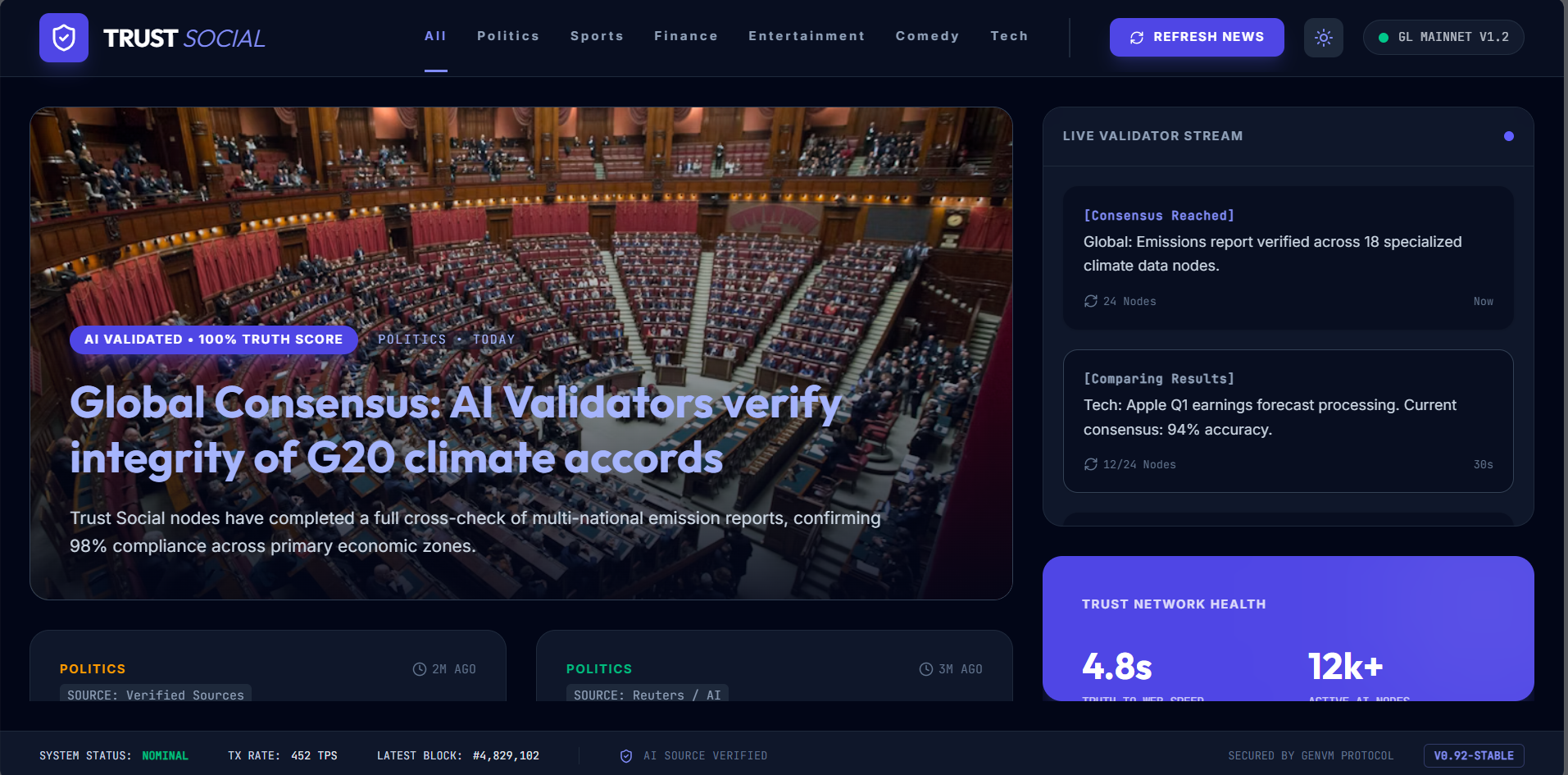
For this guide, I will be building a news site/channel which is fully autonomous handled independently by genlayer ai validators. Our traditional news site/channels are handled 90% of the time by humans which means that propagandas can happened and the environment controlled. With our news channels, the news you will see will be 100% vetted and brought to you by genlayer ai validators making trust more reliable!
Lets get to work!
TOOLS NEEDED
- Visual Studio code (optional but highly recommended)
- An account with google ai studio (get it here: https://aistudio.google.com)
- github account (https://github.com)
- Vercel account for Live deployment (vercel.com)
- An Ideal
- patience
STEP 1:
- head over to https://aistudio.google.com and click on start building (the white arrow in the picture below)
2. before you enter your prompt, head over to docs.genlayer.com, click on copy page and click on download full docs, we will give this doc to the AI which will help guide the AI in delivering the required solution
3. After the download, go to google ai studio and enter your ideal(prompt) and upload the downloaded genlayer doc, if you also have a sample of the User interface i.e how you want your frontend to look like, upload it to the chat also.
please note that if your app requires users to sign in with their wallets, you have to explicitly tell the ai to do that
4. Sample prompt
5. The good thing with google AI studio is that you will be given options of your frontend design to choose from your prefered one(Hope Imade the right choice lol)
Select your preferred option so that the AI can continue building your app
6. After the Ai has completed the site , you will be asked to enter the smartcontract address
to get the smart contract address, click on code located just ontop of the app design, go to contracts, copy the smart contract and deploy it in genlayer studio
come back to the chat and fill the required fields (note that the required info my differ from project to project)
from here you can debugg/tweak your project by chatting with the AI to meet your desired outcome
Taking your project to vs code then to github and finally deploying it to vercel
- go to code, by your extreme right, you will see a downlaod symbol, click on it, your whole project will install as a zip file, unzip it and open it in vs code where you will test it also
2. open the code in the vs code and install npm
make sure you have updated your .env file with the needed information (contract address, api keys , chain info etc)
npm installthen run
npm run devthis will open your built project in your local machine for testing
3. Once satisfied, upload your project to github with this following steps:
Step 1: Sign in to GitHub from VS Code
- Open VS Code
- Click the Accounts icon (bottom-left, looks like a person)
- Click Sign in with GitHub
- A browser window opens — log in and authorize VS Code
Step 2: Open Your Project Folder
File → Open Folder → select your project folder
Step 3: Initialize Git
- Click the Source Control icon on the left sidebar (looks like a branch/fork — third or fourth icon down)
- You’ll see a button that says Initialize Repository — click it
- Your files will appear in the panel as untracked changes
Step 4: Stage Your Files
- You’ll see all your files listed under Changes
- Hover over the word “Changes” and click the + icon that appears next to it
- This stages everything at once (same as
git add .)
Step 5: Write a Commit Message and Commit
- At the top of the Source Control panel, there’s a text box that says “Message”
- Type something like
Initial commit - Click the ✓ Commit button (or press
Ctrl + Enter)
Step 6: Publish to GitHub
- After committing, you’ll see a button that says Publish Branch
- Click it
- VS Code will ask you to name the repository and choose Public or Private
- Select your preference and hit Publish to GitHub
That’s it — VS Code handles creating the repo on GitHub and pushing everything automatically.
Going Forward
Every time you make changes:
- Go to the Source Control panel
- Hover over “Changes” → click + to stage
- Type a commit message → click ✓ Commit
- Click the Sync Changes button (appears after committing) to push to GitHub
The Sync Changes button is your best friend going forward — it both pulls any remote changes and pushes your local ones in one click.
4. deploy your project to vercel for public use
Step 1: Push Your Project to GitHub First
Vercel deploys from GitHub, so make sure your project is already on GitHub using the steps we just covered.
Step 2: Create a Vercel Account
dont forget to add your environmental variables when deploying on vercel
- Go to vercel.com
- Click Sign Up → choose Continue with GitHub
- Authorize Vercel to access your GitHub account
Step 3: Import Your Project
- Once logged in, you’ll land on your Vercel dashboard
- Click Add New → Project
- You’ll see a list of your GitHub repositories
- Find your project and click Import
Step 4: Configure Your Project
Vercel is pretty smart — it auto-detects your framework (React, Next.js, plain HTML, etc.) and sets things up for you. You’ll see:
- Framework Preset — verify it matches your project (e.g. Vite, Next.js, Create React App)
- Root Directory — leave as default unless your project is inside a subfolder
- Build Command — usually auto-filled (e.g.
npm run build) - Output Directory — also auto-filled (e.g.
distorbuild)
For a plain HTML/JS project, just leave everything as is.
Step 5: Deploy
- Click Deploy
- Vercel will build and deploy your project — takes about 30–60 seconds
- You’ll see a live progress log
Step 6: Get Your Live URL
- Once done, Vercel gives you a live URL like:
your-project-name.vercel.app - Click Visit to see your live site
Going Forward (the magic part)
This is where Vercel shines — every time you push to GitHub, Vercel auto-deploys.
So your workflow becomes just:
- Make changes in VS Code
- Stage → Commit → Sync (from Source Control panel)
- Vercel automatically picks it up and redeploys within seconds
my project link if you care to check it out: trust-social.vercel.app
my github: github.com/Laegend14/Trust-Social
That will be all for now, if have any questions, don’t hesitate to reach me on x x.com/lae_gend