
Here’s A step-by-step approach to understand the interface and features from scratch

In this article, we introduced some of the basic concepts of Microsoft Power Automate. Now that you’re familiar with some of the ideas and terminology behind Power Automate, let’s take a look at navigating the interface.
As a Power Automate user, you’ll have access to the web portal interface (most commonly used) as well as the desktop and mobile interfaces.
If you administer a Microsoft 365 tenant, you’ll also have some administrative features available.
Agenda
- Logging into Power Automate
- Learning how a flow works
- Creating your first flow
Logging into Power Automate
Power Automate has four distinct experiences:
- End user web portal: User or creator interfaces to design, import, save, export, and execute flows
- Mobile app: User or creator interfaces to design, import, saving, export, and execute flows, formatted specifically for mobile devices
- Desktop: Most commonly used for creating robotic process automation (RPA) flows
- Admin: The overall administration of the Power Automate environment for your tenant, including the number of executions or runs and data gateway configurations.
Power Automate tenant administration is largely outside the scope of what we’re going to be learning from a design aspect, but should you ever need to administer the Power Automate environment, you’ll know where to start.
Regardless of which interface you are going to use, you will need access to Power Automate to get the most out of this article.
If you don’t have access to Microsoft Power Automate within your organization, you will want to start a Microsoft 365 trial so you can gain access to it.
To start a trial subscription, navigate to https://www.microsoft.com/en-us/microsoft-365/try and click the Start your free trial link.
It’s also important to note that Microsoft Power Automate is a cloud-only solution — there is no required on-premises server counterpart (though you may install server-side components such as the data gateway or utilize Power Automate Desktop on Windows 10 and 11 computers).
Microsoft Power Automate is available in the following Microsoft 365 clouds.
- Worldwide commercial: https://make.powerautomate.com
- United States Government Community Cloud (Moderate): https://gov.flow.microsoft.us
- • United States Government Community Cloud (High): https://high.flow.microsoft.us
For this entire journey, we will focus on the features of the worldwide commercial solution.
Users of Government Community Cloud Moderate (such as state and local governments) or Government Community Cloud High (such as federal civilian employees) may have slightly different feature sets available.
End User Web Portal
The end user web portal interface is where you’ll design, manage, and execute most of your flows.
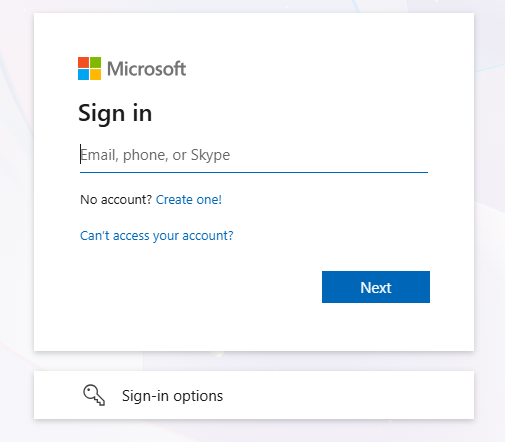
To access it, you can log in to http://make.powerautomate.com or log in to the Microsoft 365 end user portal (https://portal.office.com) and click on the Power Automate tile.
If you’re using one of the other sovereign clouds, use the links in the previous section or contact your reseller for specific links.
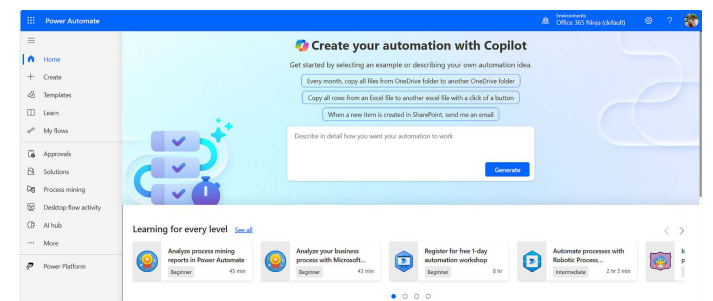
The left part of the page features a default navigation menu that includes options for creating and managing your own flows and searching for templates and connectors.
The following list describes the options available:
- Home: The dashboard displayed upon first logging in
- Create: The interface for creating new flows
- Templates: Pre-canned flows comprising connectors that only need to be customized
- Learn: A link to the landing page for Power Automate on docs.microsoft.com (https://learn.microsoft.com/en-us/power-automate)
- My flows: Flows that you have created (or that have been shared with you).
- Approvals: Lists the activity you have for pending or past approvals
- Solutions: Containers for managing the transportation and life cycle of Power Platform applications
- Process mining: Template actions to explore business processes such as ERP or finance workflows
- Desktop flow activity: Review data on desktop flows, hosted machines, and machine groups
- AI Hub: Access AI Builder models and generative AI prompts
- More: A top-level menu item containing links to additional items that can be pinned to the main navigation menu
- Power Platform: Links to other Power Platform components, such as Power Apps, Power BI, Power Pages, Copilot Studio, and the Power Platform admin center
Mobile App Interface
The Power Automate mobile app, available for both the iOS (https://apps.apple.com/us/app/microsoft-flow/id1094928825) and Android (https://play.google.com/store/apps/details?id=com.microsoft.flow) platforms, offers a similar design aesthetic and experience.
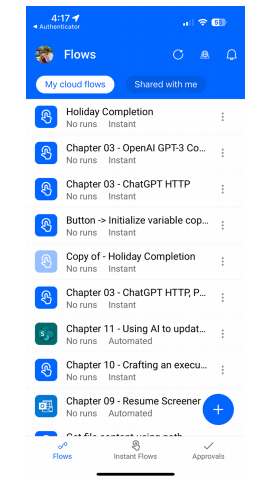
Once logged in, the following options are available on the home screen:
- My cloud flows: Shows a list of flows that you have created
- Shared with me: Displays a list of flows that others have created and shared with you
- Flows: Shows the flows that you have access to, filtered by My cloud flows and Shared with me tabs
- Instant flows: Displays a filtered list of instant or button flows
- Approvals: Shows a list of any approvals that require attention
- (Create flow): Allows you to create a new flow using the Power Automate mobile app
The mobile app focuses on surfacing flow components and actions specifically tailored to mobile devices.
Most of this article focuses on the end-user web portal experience, but you’re encouraged to interact with the mobile app as well.
Power Automate Desktop Interface
As mentioned in Introducing Microsoft Power Automate, Power Automate Desktop is a new way to interact with flows.
You can only create robotic process automation flows from Power Automate Desktop.
The Power Automate Desktop application itself is free to download for Windows 10 and is included with Windows 11.
However, in order to use advanced features (such as RPA flows), you may need to acquire additional licensing.
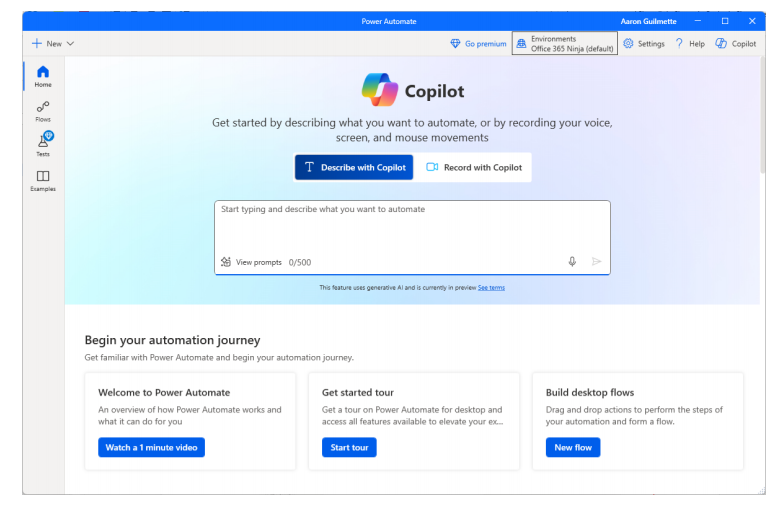
Power Automate Desktop allows you to interrogate system resources and interact with files, browser instances, applications such as Outlook and Excel, command prompts, and even printers.
Admin Interface
Previously, administrators needed to use both the Power Automate admin center and the Power Platform admin center to manage their environments.
In 2021, all the functions were combined into the Power Platform admin center.
The Power Automate Admin center (https://admin.powerplatform.microsoft.com) allows you to track tenant-wide runs, view license information, view overall environment data, and configure Data Loss Prevention (DLP) policies.
The admin center also allows you to manage pipelines (part of Power Platform application lifecycle management or ALM) for implementing development operations (DevOps) and continuous integration/continuous delivery (CI/CD) software development lifecycle workflows.
In addition, the Power Platform admin center allows you to administer features across the entire Power Platform, including Power Automate, but also to Dynamics 365, Power BI, Power Pages, Copilot, and Power Apps,
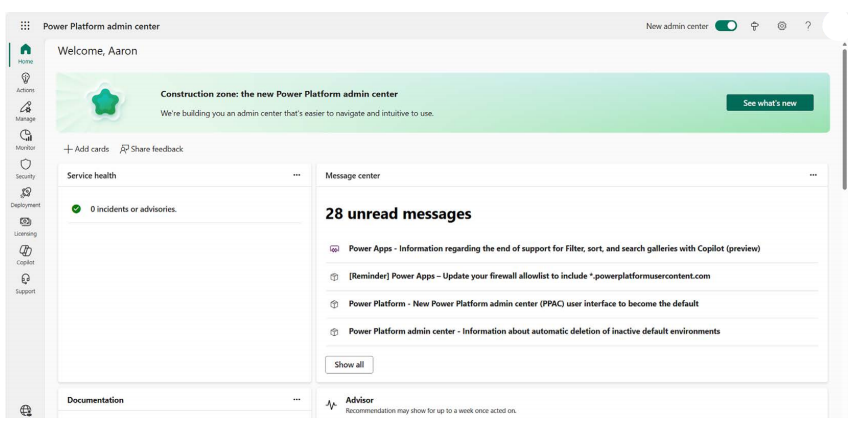
While the admin interface will not be used extensively in this article, you should understand that it exists and that administrators of the overall Microsoft 365 environment can modify configurations and view statistical data across the organization.
Now that you’ve seen the various interfaces for Power Automate, let’s look at how a flow works!
Learning How a Flow Works
As you learned in https://medium.com/@yashvaantlakham73/introducing-microsoft-power-automate-dc96387b8460, Introducing Microsoft Power Automate, flows can have a number of components, such as triggers, actions (or steps), conditions, branches, and variables.
These components are arranged in a logical pattern on a design area commonly called the canvas.
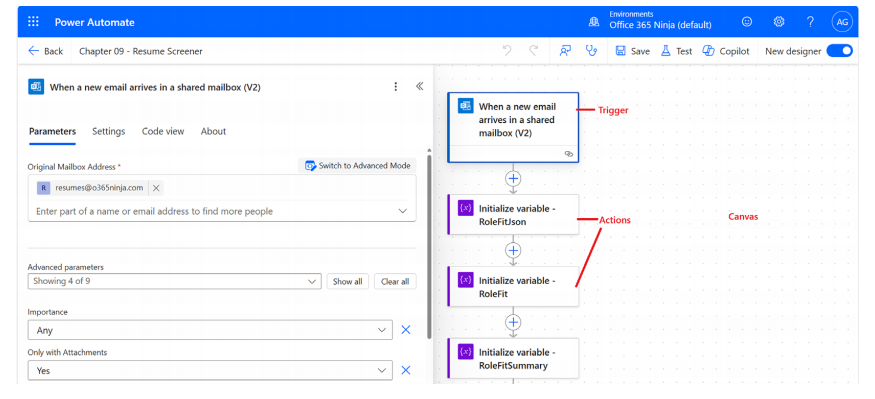
The trigger is the first action in a flow. Frequently, triggers connect to resources that require authentication (such as a username and password or API key and secret).
These triggers can be automated, manual, or based on a schedule. Depending on the type of trigger, you may need to pre-populate some variables or fields.
Each action automatically stores its results in a series of variables called dynamic values or dynamic content.
These dynamic content variables are used to pass data between steps in the flow.
Depending on the output of an action, dynamic values may represent a variety of data types such as strings, numbers, arrays, or other common programming constructs.
Dynamic values can be used in many fields by typing a / character or by clicking on the lightning bolt icon.
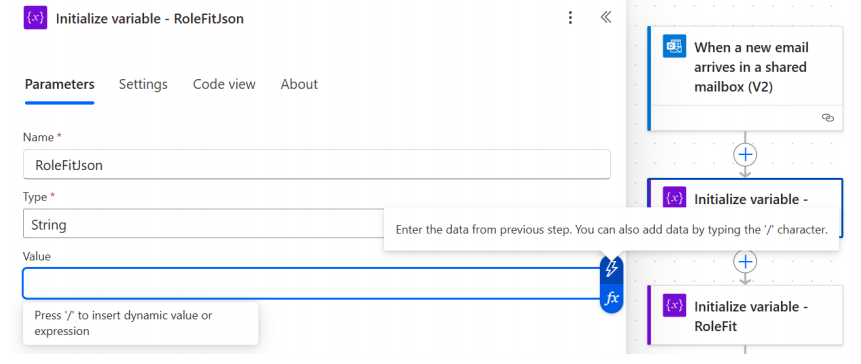
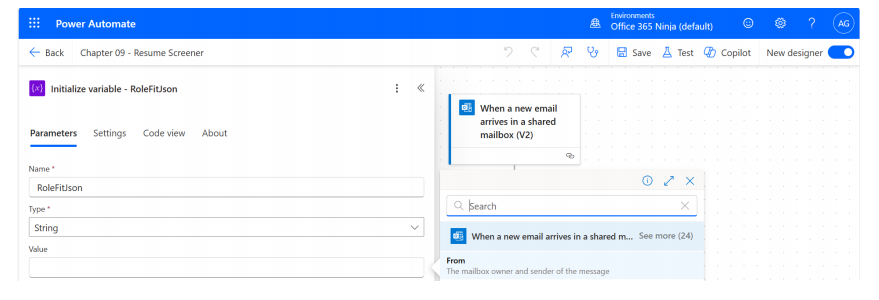
After exposing the dynamic values flyout, you can select dynamic value tokens that have been generated by any previous action.
By selecting a token, it will be placed in the field.
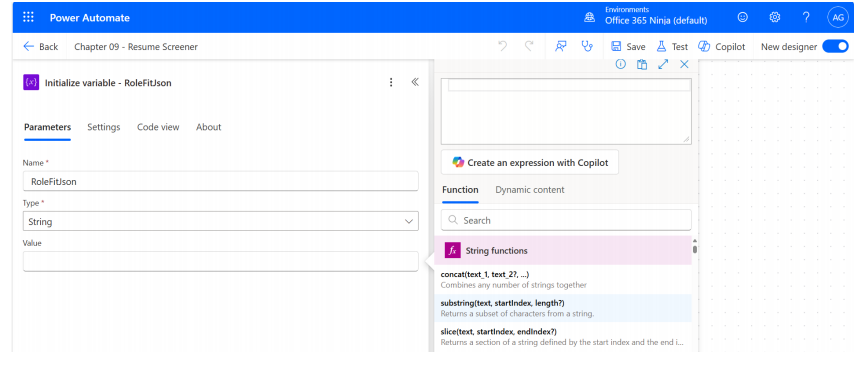
In addition to dynamic content tokens, you can also use expressions. Expressions are code that can be used to further manipulate variables (such as converting time or replacing text).
Expressions can combine functions (which work very similarly to Excel’s macro language) along with dynamic content to create new kinds of objects and values.
Creating Your First Flow
The best way to see Power Automate in action is to start creating a flow.
In this example, we are going to create a flow that monitors X (formerly Twitter) for a certain hashtag and then posts a notification to a Teams channel.
Such a flow might be useful if you are trying to gauge or capture customer sentiment for a product or service, track trending public health topics related to certain keywords, monitor engagement activity, or other topic-based alerts on a social media platform.
Understanding the Flow Components
- An API key and secret for X (similar to a username and password).
- A trigger that monitors X for certain words or phrases.
- An identity for Microsoft 365 (username and password).
- A Microsoft Teams team.
- An action that posts to Microsoft Teams.
To complete this flow, you will need your existing Microsoft 365 identity (or the identity you’re using in a test environment), as well as an identity for X (https://www.x.com) with an API key.
You will also need access to a Microsoft Teams team where messages will be posted.
Getting an X API Key
X has changed the way users interact with its service, now requiring an API key to access and programmatically read and post tweets.
You will need to sign up at https://developer.x.com.
With a free developer account, you’ll be able to create a single project that contains a single app.
To create your app, follow these steps:
- Log in to the X developer portal https://developer.x.com.
- Select Get started under Free.
- On the Developer agreement & policy page, provide a reason for using the developer API. Select the checkboxes to agree to the terms and conditions and then click Submit.
- Expand Projects & Apps and select the default project.
- On the Keys and tokens tab, click Regenerate to create a new API key and API key secret.
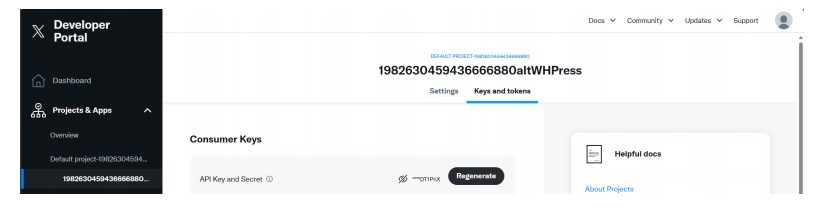
- Click Yes, regenerate.
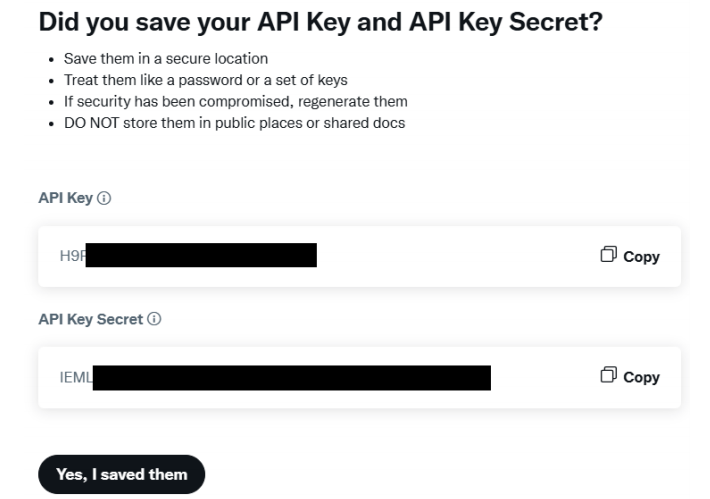
- Copy them to a safe location for later use. Click Yes, I saved them when finished.
- Select the Settings tab.
- Under User authentication settings, click Set up.
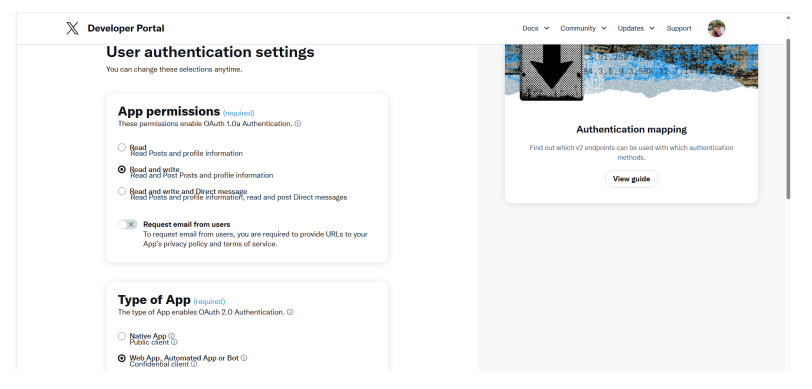
- Under App permissions, select a permission level such as Read and write.
- Under Type of App, select Web App, Automated App, or Bot.
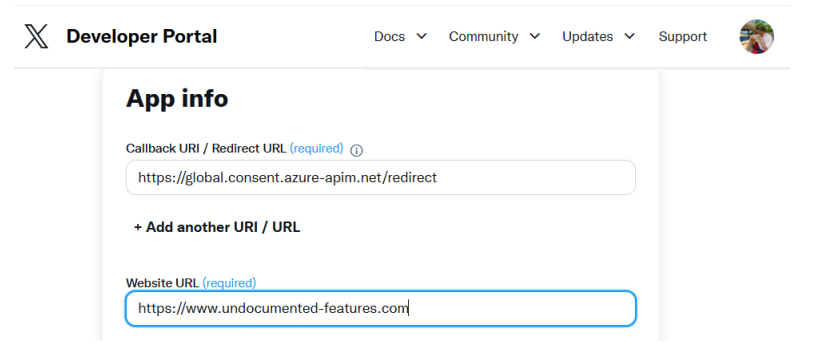
- Under App info, enter https://global.consent.azure-apim.net/redirect in the Callback URI / Redirect URL field.
- Under Website URL, enter any website value (such as a personal blog or workspace, x.com, or other site — it doesn’t impact Power Automate).
- Scroll to the bottom of the page and click Save.
- Click Yes to acknowledge changing permissions if prompted.
- Finally, copy the client ID and client secret to a safe location for later use.
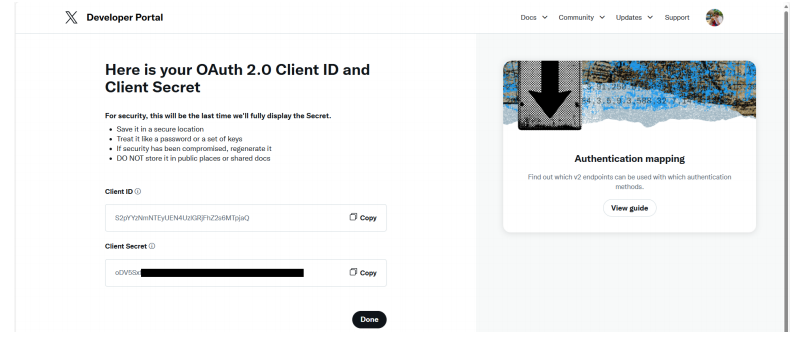
- Click Done.
In web development terminology, an API key and a secret are analogous to a username and a password.
You will need these to authenticate to X from your Power Automate flow.
Creating a (Microsoft Teams) Team
If you’re not familiar with Microsoft Teams, it’s a modern collaboration software platform that brings several Microsoft technologies under a single, unified user interface.
You can learn how to create teams here: https://learn.microsoft.com/en-us/microsoftteams/get-started-with-teams-create-your-first-teams-and-channels.
Once you have the required identities, teams, and API keys configured, we’ll start creating the flow.
Creating the Flow
Once we have the prerequisite components for the flow (that is, the previously mentioned identities and a team), we can begin the configuration.
To build this sample flow, follow these steps:
- Log in to the Power Automate web portal (https://powerautomate.microsoft.com).
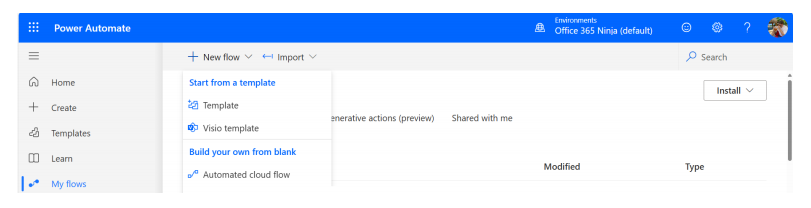
- On the left-hand side of the page, click Create.
- On the My Flows page, click New flow and then, under Build your own from blank, select Automated cloud flow.
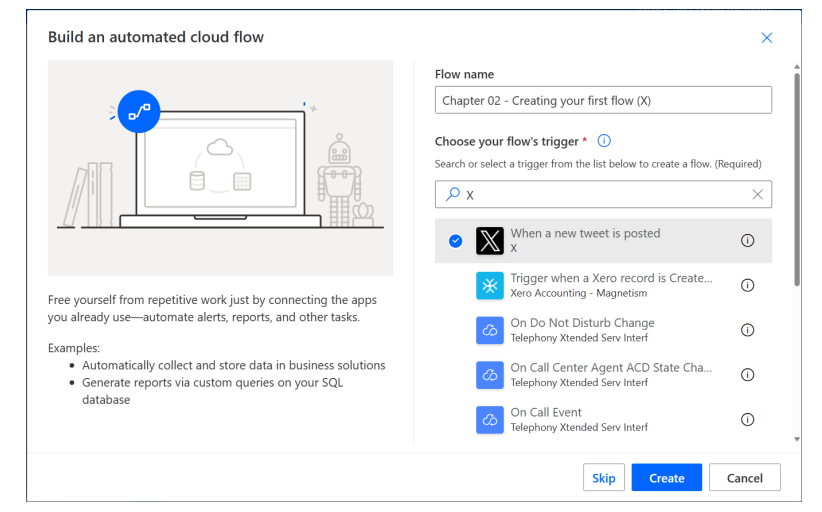
- Enter a flow name.
- In the Choose your flow’s trigger box, start typing X to filter triggers related to X. Select When a new tweet is posted and click Create.
- Click the When a new tweet is posted trigger.
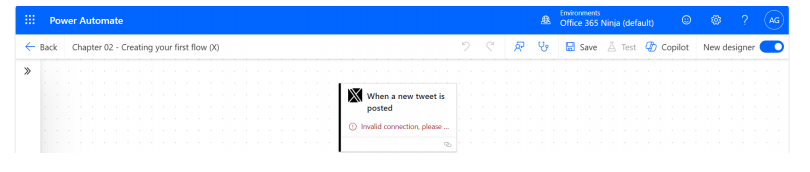
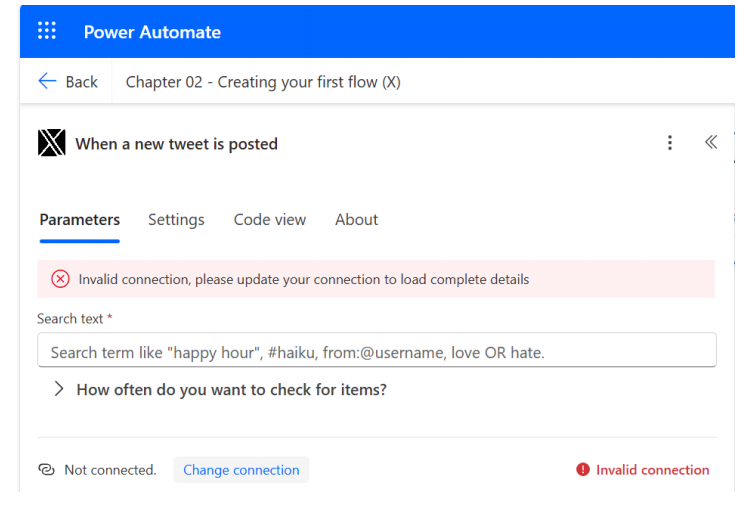
- On the When a new tweet is posted flyout, click Change connection to bring up the Create connection flyout, where you’ll enter your API key and secret details.
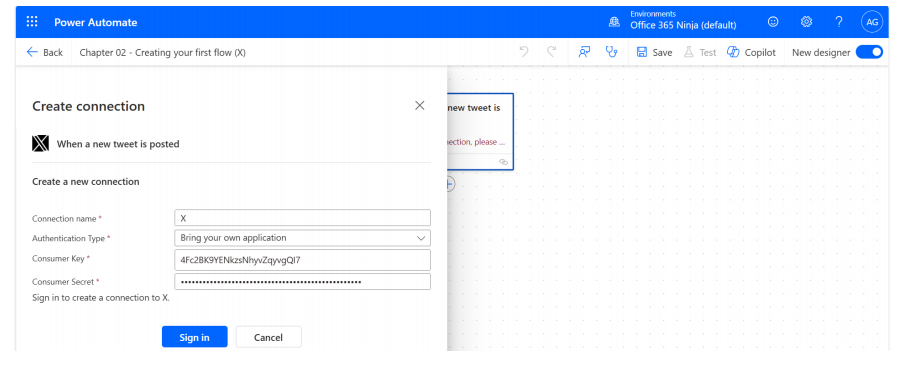
- On the Create connection flyout, enter a connection name. Paste in the consumer key and consumer secret you regenerated in the previous section and click Sign in.
When prompted, click Sign In to authorize your X app to access X on your behalf.
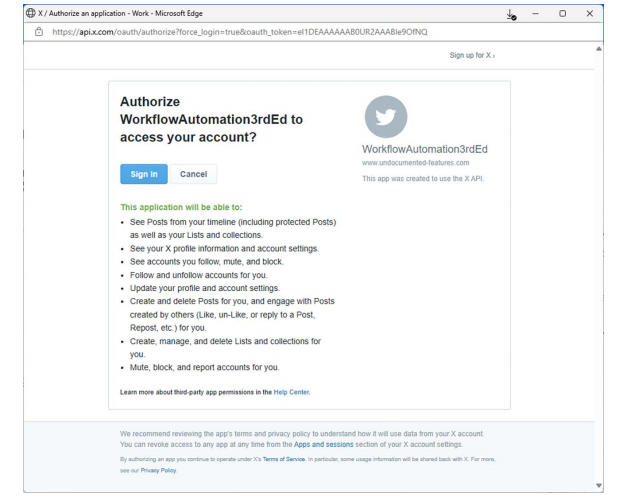
- If prompted, sign in to X using your username and password.
- Click Authorize app.
- After being redirected back to the X connection flyout, enter a value in the Search text box. You can enter a term, a hashtag, or other supported search query.
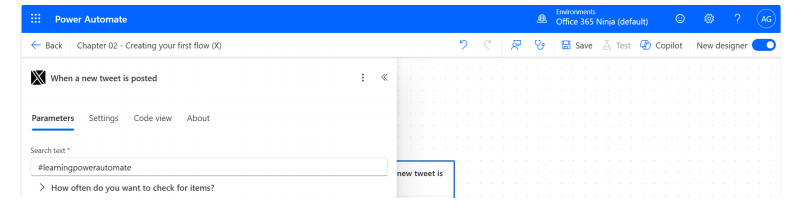
- Close the flyout.
- Click the + (Add an action) button after the X trigger to bring up the Add an action flyout.
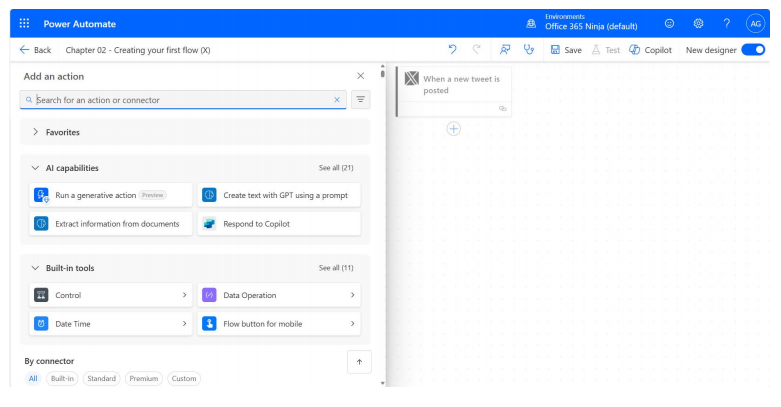
- Search for the Microsoft Teams Post message in a chat or channel action and select it.
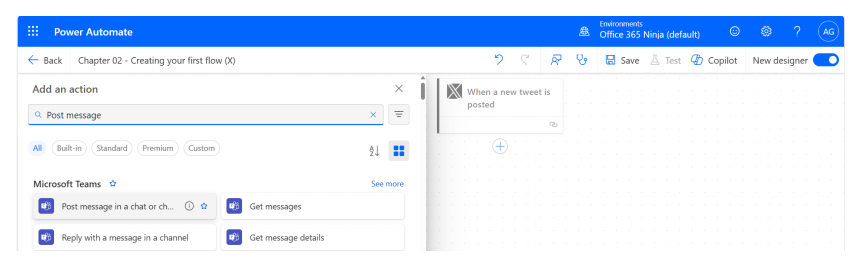
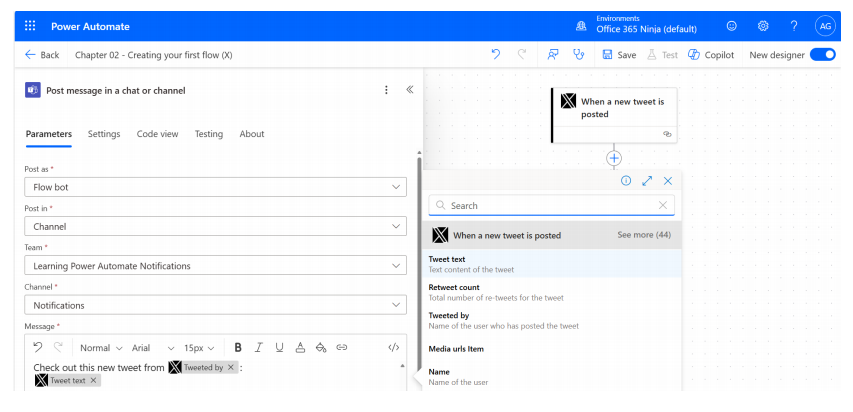
- On the Parameters tab, under Post as, select Flow bot.
- Under Post in, select Channel.
- Under Team, select the team you created for this exercise.
- Under Channel, select an available channel on the team.
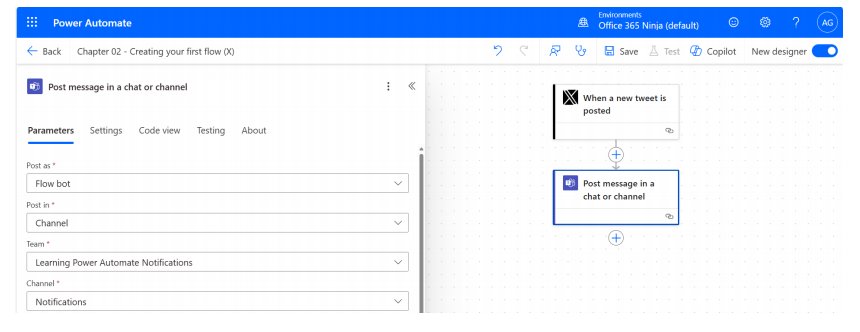
- Populate the Message field. In this example, the dynamic content tokens Tweeted by and Tweet text have been selected to surface data provided by X. Click the lightning bolt icon to display the available dynamic content tokens.

- Select any additional dynamic content tokens to complete your message. You can use a mix of dynamic values and text to customize the message field. The dynamic content will be inserted inline where the dynamic value’s token is placed.
- When finished, click the Save icon on the menu bar.
Testing the Flow
By testing a flow, you’ll be able to find out whether it works. Any error messages generated will give you a starting point for figuring out what went wrong and how to fix it.
To begin testing a flow, follow these steps:
- Click the Test icon on the menu bar.

- On the Test Flow flyout, select the Manually radio button and click Test.
- Open a browser window, navigate to X, and then send a tweet using the text that you put in the flow’s trigger.
- Wait for the flow to process.
Now that the flow has been created and saved, you can test it by generating content and then checking to see whether the content gets posted to the Microsoft Teams channel as you’d expect.
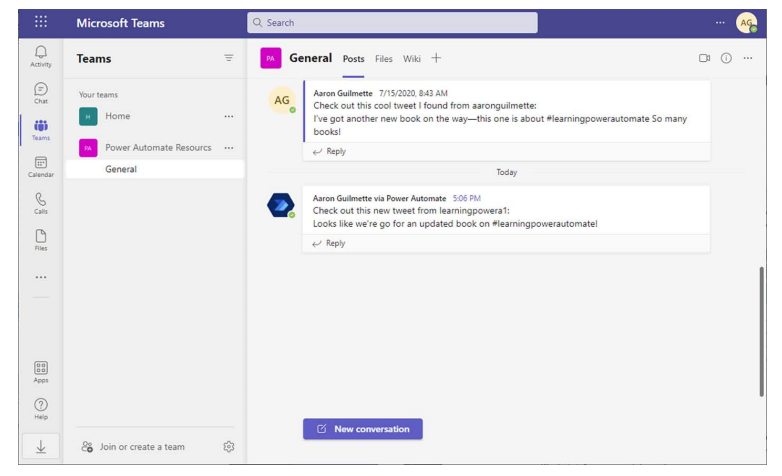
If it doesn’t look the way you expect, you can try adding different dynamic content variables or investigating the data retrieved during the run.
Examining the Flow
At any time, you can use a feature called Peek code that allows you to look at the underlying JavaScript Object Notation (JSON) code that controls how a step functions.
To access the JSON view for a step or action, click the step to bring up its flyout and then choose the Code view tab.
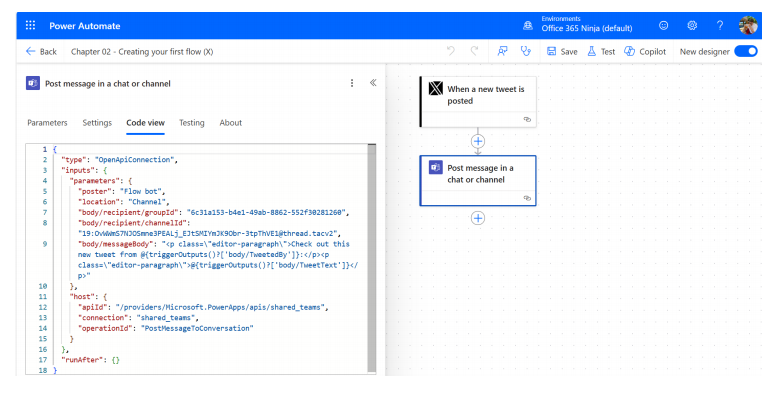
While you can’t edit the code directly in the Power Automate user interface, you can export or copy it and then edit it in a tool such as Visual Studio or Visual Studio Code (VS Code).
Joining Us:
Check out more articles:
- List: Python Real-World Projects | Curated by A.I Hub | Medium
- List: Retrieval Augmented Generation - A Hands-on Approach | Curated by A.I Hub | Medium
- List: AI Trading - A Hands-on Approach | Curated by A.I Hub | Medium
- List: Modern Marketing with AI | Curated by A.I Hub | Medium
- List: Autonomous Programming - Beginner to Advanced | Curated by A.I Hub | Medium
Thanks For Reading
How to Get Started with Microsoft Power Automate was originally published in DataDrivenInvestor on Medium, where people are continuing the conversation by highlighting and responding to this story.